








A technical SEO audit checklist is a step-by-step guide to find and fix technical issues on your website. It ensures Google and AI search engines can easily crawl, index, and rank your content.
Is your website traffic dropping suddenly? Are new pages missing from Google, or failing to show up in ChatGPT and AI Overviews? You are not alone.
At Digimastreys, we use this exact process to fix site issues and prepare content for AI search. In this guide, you get a 7-step roadmap, a free checklist template, and a clear priority table so you do not need any other guide.
Let’s start fixing your site.
A technical SEO audit checklist in 2026 includes seven core pillars to keep a website healthy, accessible, and visible across modern search platforms. It evaluates crawling permissions, indexing statuses, JavaScript rendering, site architecture, page performance, structured data, and conversational search readiness. Systematically conducting these technical checks ensures both traditional search engine crawlers and AI assistants can discover, process, and cite your web pages accurately. Addressing these technical components systematically prevents organic traffic drops, resolves indexing issues, and boosts overall search engine visibility.
- Verify your robots.txt file and server status codes to ensure search crawlers can discover your essential pages without restrictions.
- Confirm primary URLs are correctly indexed in Google Search Console while excluding duplicate, broken, or thin pages.
- Ensure search engines can render dynamic JavaScript content, interactive elements, and critical internal links accurately.
- Structure your site hierarchy logically and connect related pages using descriptive anchor text to distribute authority effectively.
- Measure and optimize page loading speed, visual stability, and mobile responsiveness to meet Core Web Vitals thresholds.
- Implement valid schema markup to help search engines understand page context and render rich snippet search features.
- Optimize content structure and crawler permissions to ensure accessibility and direct retrieval by conversational AI platforms like ChatGPT and Google AI Overviews.
What Does a Technical SEO Audit Checklist Include?
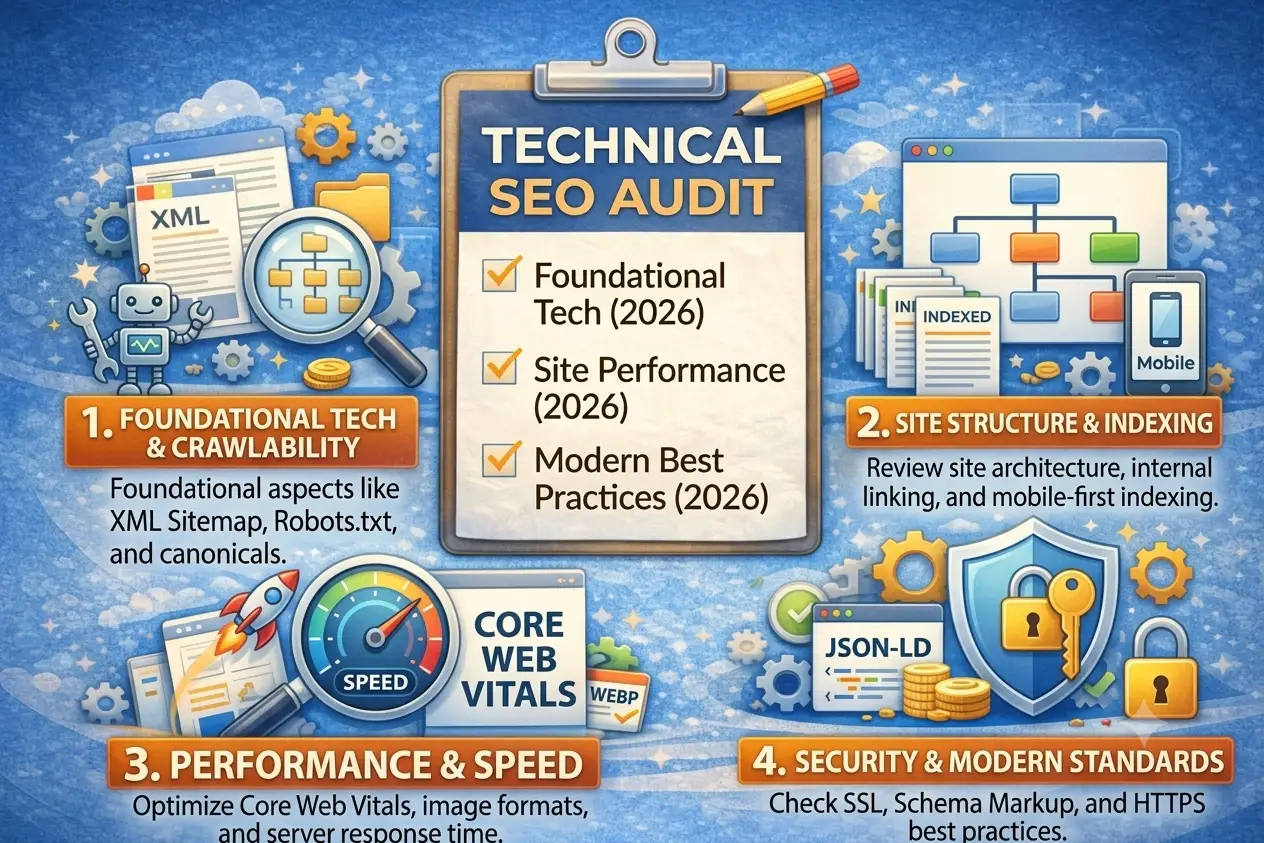
Quick Answer: A technical SEO audit checklist in 2026 includes seven core pillars to keep a website healthy and visible. It covers crawling access, indexing status, JavaScript rendering, site architecture, page experience, structured data, and AI engine search readiness. Performing these checks ensures search engines and AI assistants can find, process, and display your pages accurately. Addressing these areas systematically prevents ranking drops and improves organic visibility.
- Crawling access control: Check your robots.txt file and status codes to ensure search crawlers can reach your essential pages without restrictions.
- Indexing status verification: Confirm your primary URLs are indexed in Google Search Console while keeping duplicate or thin pages out of search.
- JavaScript rendering checks: Ensure search engines can view and render your dynamically served content, interactive elements, and critical page links correctly.
- Architecture and internal links: Organize your site hierarchy logically and connect related pages using keyword-rich anchor text to pass link equity effectively.
- Core Web Vitals performance: Measure and optimize page loading speeds, layout shifts, and visual interactivity for both mobile and desktop users.
- Structured data validation: Implement schema markup to help search engines understand page context and render rich snippet search results.
- AI search readiness: Optimize site content and structure for retrieval by conversational search platforms like ChatGPT, Perplexity, and AI Overviews.
What You Need Before You Start: Free Tools and Setup
Before you begin your technical SEO audit, you need the right diagnostic tools to inspect your website. Using free tools saves money while giving you exact data on how search engines view your pages.
| Tool | What it checks | Free? |
| Google Search Console | Indexing status, search traffic, mobile usability, and manual actions | Yes (100% Free) |
| Screaming Frog | Technical errors, broken links, meta tags, and site structure (up to 500 URLs) | Yes (Free version) |
| PageSpeed Insights | Core Web Vitals, loading speed, and performance bottlenecks | Yes (100% Free) |
| Rich Results Test | Schema markup eligibility for Google search enhancements | Yes (100% Free) |
| Schema.org Validator | Structured data syntax errors and validation issues | Yes (100% Free) |
| Chrome DevTools | Page rendering, mobile responsiveness, and console warnings | Yes (Built-in) |
| Bing Webmaster Tools | Bing indexing, crawl stats, and backlink data | Yes (100% Free) |
Quick setup steps before you start:
- Verify your site in GSC: Confirm ownership in Google Search Console to access search analytics and indexing reports.
- Submit your XML sitemap: Upload your updated sitemap to help search engines discover all important pages quickly.
- Run a baseline crawl: Run your first full site crawl in Screaming Frog and save the export as your starting benchmark.
Step 1: Crawling Audit
Check robots.txt · Check your XML sitemap · Fix broken links and redirect chains · Look for crawl waste
Crawling comes first because search engines must discover and download your web pages before they can read or rank them. If a crawler cannot access your content, the rest of your SEO efforts will fail.
Check Your robots.txt File
Your robots.txt file is a text file that gives instructions to search engine bots about which pages they can or cannot visit.
- Open your browser and go to [yourdomain.com/robots.txt](https://yourdomain.com/robots.txt).
- Look for rules like Disallow: / which blocks all crawlers from your entire site.
- Use Google Search Console’s robots.txt Tester tool to verify if specific URLs are blocked.
- Common mistake: Leaving a leftover Disallow: / rule active after launching a website from a staging environment, which causes sudden and total traffic loss.
Verify Your XML Sitemap
An XML sitemap acts as a roadmap for your website, helping search engine bots find your most important pages quickly.
- A healthy sitemap contains: Only 200-status, canonical, and indexable URLs. It should exclude redirecting pages, broken links, and blocked URLs.
- Access your sitemap at [yourdomain.com/sitemap.xml](https://yourdomain.com/sitemap.xml).
- Check that all listed URLs are live pages that return a normal 200 OK status code.
- Submit your sitemap URL directly inside Google Search Console under the “Sitemaps” section.
- Common mistake: Including old, deleted, or redirecting URLs in the sitemap, which wastes search bot crawler budget.
Fix Broken Links and Redirect Chains
Broken links and long redirect chains frustrate users and drain search crawler resources.
- Run a free crawl in Screaming Frog and click on the Response Codes tab.
- Filter the results by client error codes like 404 Not Found or redirection errors like 301 Redirect Chains.
- Update internal links pointing to 404 pages and simplify multi-step redirects into a single direct redirect.
- Common mistake: Ignoring 404 errors on pages that still receive external backlinks or user traffic.
Spot Crawl Waste
Crawl waste happens when search engines spend time crawling low-value pages instead of your important content.
- Open Google Search Console and check the Crawl Stats report under Settings.
- Look for high request volumes on parameter URLs, tag archives, or duplicate pagination pages.
- Use meta robots noindex tags on thin or utility pages to keep bots focused on high-value content.
- Note: Log file analysis is optional for beginners and is usually reserved for large enterprise websites with millions of pages.
Step 2: Indexing Audit
Check if your pages are indexed · “Crawled – currently not indexed” and “Discovered – currently not indexed” · Noindex and canonical tags · Duplicate URLs
Crawling does not mean indexing. Crawling means Google discovered and downloaded your page, while indexing means Google stored that page in its database to show in search results. A page must pass indexing quality checks to show up in search results.
Check Whether Your Pages Are Indexed
You must verify if Google actually includes your key pages in its search index.
- Log into Google Search Console and go to the Indexing > Pages report.
- Check the breakdown of Indexed versus Not indexed pages.
- Paste any URL into the top search bar for a deep inspection using the URL Inspection Tool.
Understand Common Index Statuses
Google Search Console categorizes why certain pages are not indexed on your site.
| Status in Google Search Console | What it means | What to do |
| Crawled – currently not indexed | Google crawled the page but decided not to index it. | Improve content quality, internal links, and unique value. |
| Discovered – currently not indexed | Google knows the URL exists but has not crawled it yet. | Improve internal linking and crawl allocation to that page. |
| Duplicate without user-selected canonical | The page has copies, but no master URL was declared. | Add a self-referencing or primary rel=”canonical” tag. |
| Excluded by ‘noindex’ tag | The page contains a meta tag explicitly telling Google to ignore it. | Remove the noindex tag if the page should be indexed. |
| Soft 404 | The page looks like an error page to Google, even if it returns 200 OK. | Add clear content or return a true 404/301 status code. |
Find Wrong Noindex and Canonical Tags
Accidental meta tags can hide your best content from search engines entirely.
- Filter your Screaming Frog crawl under the Directives tab to view meta noindex tags.
- Review the Canonical 1 column to verify every page points to its correct primary URL.
Warning: Do not block a page in robots.txt while relying on a noindex tag, because Google must crawl the page to read the tag.
Clean Up Duplicate URLs
Duplicate pages dilute search engine authority and confuse crawlers.
- Search GSC for duplicate page groups under the Pages report.
- Consolidate duplicate parameters or HTTP/HTTPS variants using 301 redirects and canonical tags.
Step 3: Rendering and JavaScript Audit
Rendering is how search engines turn code into a visible web page. Google must see the exact same content, text, and links that your human visitors see. If your code hides critical content behind heavy scripts, search bots and AI tools may miss it entirely.
To check this, compare your raw code with the rendered version. Right-click your page and select View Page Source. Next, paste your URL into Google Search Console’s URL Inspection Tool, click Test Live URL, and open View Tested Page.
Check if your main headings, paragraphs, and links appear in both views. AI search crawlers often struggle to execute complex scripts. If your text is hidden behind scripts, AI tools cannot read it.
Red flags to watch for:
- Missing text in source: Main content paragraphs appear only after JavaScript loads completely.
- Hidden internal links: Navigation links and category buttons vanish in the live test view.
- Dynamic meta tags: Title tags and descriptions generated entirely by client-side scripts.
- False 200 status: Deleted pages returning a 200 OK code instead of a true 404 or 410 error.
Step 4: Site Structure and Internal Linking Audit
Site structure and internal linking guide how search engines and visitors navigate your website. A clear site hierarchy distributes page authority evenly, helps crawlers index deeper pages faster, and makes your content far easier for readers and AI tools to understand.
Key internal linking checks:
- Keep click depth low: Ensure all essential pages are reachable within three clicks from your homepage.
- Find and fix orphan pages: Locate pages with zero internal links and connect them to main category pages.
- Use descriptive anchor text: Replace generic phrases like “click here” or “read more” with keyword-rich anchors.
- Implement breadcrumb navigation: Add clear breadcrumbs to display site hierarchy and improve user navigation.
- Build topic clusters: Group related articles around core parent pages to establish search authority and improve AI content on-page SEO.
Quick win: Every time you publish a new blog post, immediately find 2–3 older, relevant articles on your site and add internal links pointing directly to the new post.
Step 5: Core Web Vitals and Mobile Audit
Core Web Vitals measure user experience factors like page loading speed, visual stability, and interactivity. Google uses these performance scores as ranking signals, and poor performance frustrates mobile visitors and search crawlers alike.
| Metric | What it measures | Good score | Common fix |
| LCP (Largest Contentful Paint) | Main content load speed | Under 2.5 seconds | Compress hero images and use fast hosting. |
| INP (Interaction to Next Paint) | Page responsiveness to clicks | Under 200 ms | Remove heavy JavaScript and unused code. |
| CLS (Cumulative Layout Shift) | Unexpected layout jumping | Under 0.1 | Set explicit width and height on images. |
How to audit your site performance:
- Run your key URLs through PageSpeed Insights to check your scores.
- Review field data (real user experience) versus lab data (simulated test).
- Test the mobile experience thoroughly, as Google uses mobile-first indexing for all websites. You can learn more details from the official Core Web Vitals guide by Google.
Four quick fixes to boost your scores:
- Compress large images before uploading them.
- Lazy-load images and videos that sit below the fold.
- Remove unused plugins and heavy third-party scripts.
- Set explicit width and height attributes on all media.
Step 6: Schema Markup Audit
Schema markup is standardized structured data code added to your website HTML. It helps search engines and AI engines understand page context, entity relationships, and key details like authors, prices, and FAQs without guessing.
| Page type | Recommended schema | Key fields |
| Blog Post | Article / BlogPosting | headline, author, datePublished, image |
| Homepage | Organization | name, logo, url, sameAs |
| Author Page | Person | name, jobTitle, worksFor, sameAs |
| All Pages | BreadcrumbList | itemListElement, position, name |
| Product Page | Product | name, price, availability, aggregateRating |
How to validate your schema markup:
- Test live URLs using Google’s Rich Results Test to confirm rich snippet eligibility.
- Paste your code into the Schema.org Validator to identify syntax errors and formatting issues. Review the official Schema.org documentation for guidelines.
- Check the Enhancements tab in Google Search Console to fix sitewide structured data warnings.
Note: Schema markup is not a direct ranking factor, but it increases search visibility and click-through rates. Always ensure your schema details match the visible content on your page.
Step 7: AI Search Readiness Audit (for Google AI Overviews, ChatGPT and Perplexity)
AI search readiness ensures conversational engines can crawl, understand, and cite your content in generative answers. As search shifts toward direct answers, optimizing your technical foundation helps capture visibility in Google AI Overviews, ChatGPT, and Perplexity. You can learn more in our generative engine optimization guide and read our breakdown of GEO vs AIO vs SEO.
Check Which AI Crawlers Can Access Your Site
Training bots collect web content to build AI models, while search and retrieval bots fetch live web pages to cite them in user queries. Deciding to allow or block training bots is a business choice, but blocking search bots prevents AI platforms from linking to your pages.
Plaintext
# Allow AI search crawlers to access and cite content
User-agent: OAI-SearchBot
Allow: /
User-agent: PerplexityBot
Allow: /
# Optional: Block AI model training bots
User-agent: GPTBot
Disallow: /
Make Your Content Easy to Quote
To help AI engines extract and cite your information, structure your pages cleanly:
- Use answer-first paragraphs: Place a direct 2-3 sentence answer right under each main heading.
- Maintain clear heading hierarchy: Use logical H2 and H3 tags to organize your topics.
- Include structured formatting: Use short bullet lists, numbered steps, and comparison tables.
- Display trust signals: Keep author names, publish dates, and credentials visible on the page.
- Implement schema markup: Use Organization and Person schema to establish strong entity authority.
Following these practices will help you optimize your website for ChatGPT and Perplexity and earn more citations in AI search results.
Free Technical SEO Checklist Template (Copy and Use)
Use this technical SEO checklist template and free SEO audit template to systematic audit your website. Follow each step, use the suggested free tools, and track your progress to fix critical issues fast.
| # | Check | Tool | Priority | Status |
| Crawling | ||||
| 1 | Remove Disallow: / blocking rules | Google Search Console | Critical | ☐ |
| 2 | Submit updated XML sitemap in GSC | Google Search Console | Warning | ☐ |
| 3 | Remove broken 404 links and redirects | Screaming Frog | Warning | ☐ |
| 4 | Clean up long 301 redirect chains | Screaming Frog | Low | ☐ |
| Indexing | ||||
| 5 | Fix “Crawled – currently not indexed” pages | Google Search Console | Critical | ☐ |
| 6 | Fix “Discovered – currently not indexed” URLs | Google Search Console | Warning | ☐ |
| 7 | Remove accidental meta noindex tags | Screaming Frog | Critical | ☐ |
| 8 | Set self-referencing canonical tags | Screaming Frog | Warning | ☐ |
| 9 | Resolve soft 404 error pages | Google Search Console | Warning | ☐ |
| Rendering | ||||
| 10 | Ensure key content appears in raw HTML | GSC URL Inspection | Critical | ☐ |
| 11 | Verify internal links load without JavaScript | Chrome DevTools | Warning | ☐ |
| 12 | Fix deleted pages returning 200 OK | Screaming Frog | Warning | ☐ |
| Structure | ||||
| 13 | Keep main pages within 3 clicks of home | Screaming Frog | Warning | ☐ |
| 14 | Connect orphan pages with internal links | Screaming Frog | Critical | ☐ |
| 15 | Replace “click here” with keyword anchor text | Screaming Frog | Low | ☐ |
| 16 | Add breadcrumb navigation markup | Rich Results Test | Low | ☐ |
| Performance | ||||
| 17 | Pass LCP threshold (under 2.5s) | PageSpeed Insights | Critical | ☐ |
| 18 | Pass INP responsiveness (under 200ms) | PageSpeed Insights | Critical | ☐ |
| 19 | Pass CLS stability (under 0.1) | PageSpeed Insights | Warning | ☐ |
| 20 | Add explicit width and height to images | Chrome DevTools | Low | ☐ |
| Schema | ||||
| 21 | Add Organization schema to homepage | Rich Results Test | Warning | ☐ |
| 22 | Validate Article schema on blog posts | Schema.org Validator | Warning | ☐ |
| AI Readiness | ||||
| 23 | Allow AI search crawlers in robots.txt | Browser / GSC | Warning | ☐ |
| 24 | Structure content with direct answer-first blocks | Manual Inspection | Warning | ☐ |
Copy and paste this checklist into Google Sheets or Notion to track your technical SEO fixes step by step.
What to Fix First: Priority Order and How Often to Audit
You should fix issues that block crawling and indexing first. If search engines cannot access or index your pages, speed and schema optimizations will not help your rankings.
Priority Order for Technical Fixes:
- Critical crawling blocks: Remove accidental Disallow: / rules in robots.txt.
- Indexing errors: Fix noindex tags on live pages and resolve soft 404 errors.
- Broken links and redirects: Repair 404 links and break up long 301 redirect chains.
- Site architecture: Connect orphan pages and keep core content within three clicks.
- Core Web Vitals: Fix severe LCP, INP, and CLS performance issues.
- Schema & AI readiness: Implement structured data and optimize content for AI search crawlers.
Suggested Audit Frequency
| Site type | Suggested audit frequency |
| Small blog or portfolio | Every 3 months (quarterly) |
| Business website | Monthly light check + quarterly full audit |
| E-commerce or large site | Every 2–4 weeks |
Always run a complete audit immediately after a website redesign, domain migration, or major Google algorithm update.
Traffic Dropped Suddenly? Symptom, Cause and Fix

When search traffic drops suddenly, you must diagnose the underlying cause before attempting fixes. Identifying the specific technical symptom helps narrow down whether the issue stems from crawling blocks, penalty actions, or indexing errors.
| What you see | Likely cause | First thing to check |
| Traffic dropped to near zero overnight | Site-wide crawl block or canonical error | Check robots.txt for Disallow: / or check GSC for a sitewide noindex tag. |
| Pages not showing in Google | Indexing exclusion or low content quality | Inspect URLs in GSC to check for “Crawled – currently not indexed” status. |
| Only homepage is indexed | Navigation links broken or deep pages blocked | Verify internal links work without JavaScript and check subfolder permissions. |
| Traffic fell after site redesign | Broken 301 redirects or URL structure changes | Compare pre-launch vs. post-launch URL mapping and check for missing 301 redirects. |
| Pages indexed but not ranking | Core Web Vitals issue, thin content, or algorithmic update | Review GSC Page Experience reports and assess content depth against top search results. |
| Site not appearing in AI Overviews | AI search crawlers blocked or unstructured content | Verify OAI-SearchBot access in robots.txt and review structured answer formatting. |
| Indexed pages suddenly dropped in GSC | Bulk migration errors or dynamic canonical tags | Review the GSC Pages report to see if URLs moved to excluded status categories. |
Diagnostic Steps in Google Search Console
Before changing settings on your site, open Google Search Console and inspect the Security & Manual Actions tab:
- Check the Manual Actions report to confirm your site was not penalized for policy violations.
- Review the Security Issues report to ensure hacked content or malware is not triggering warnings.
- Cross-reference traffic drops with major search changes, such as the Google September 2026 spam update, to evaluate potential algorithmic impacts.
Bottom Line
A successful technical SEO audit follows a clear, logical order: crawl, index, render, structure, speed, schema, and AI search readiness. Technical SEO is an ongoing maintenance routine rather than a one-time project, as regular checks keep your website visible in changing search environments. Using the free template provided in this guide gives you a structured path to start optimizing your site today.
For more technical frameworks, explore our in-depth guides on Generative Engine Optimization (GEO) and search strategies at Digimastreys.
Frequently Asked Questions
What is a technical SEO audit?
A technical SEO audit evaluates your website’s technical infrastructure to ensure search engine crawlers can efficiently discover, render, index, and rank your web pages without encountering technical barriers.
How to perform a technical SEO audit?
To perform a technical SEO audit, analyze your site’s crawlability in robots.txt, verify indexing reports in Google Search Console, test rendering performance, optimize internal site structure, and validate schema markup systematically.
What should be included in a technical SEO checklist?
A complete technical SEO checklist includes evaluating crawling permissions, XML sitemaps, indexation statuses, JavaScript rendering, internal linking depth, Core Web Vitals performance, structured data implementation, and AI search crawler accessibility.
How to conduct a technical SEO site audit for beginners?
Conducting a technical SEO site audit involves setting up free tools like Google Search Console and Screaming Frog, running a baseline crawl, and systematically resolving critical crawling, indexation, and performance errors.
Where can I find a free SEO checklist template?
You can use our free SEO checklist template within this guide to track critical crawling, rendering, performance, and schema validation tasks directly in Google Sheets or Notion.
How often should you run an SEO technical audit checklist?
You should run an SEO technical audit checklist every three months for standard blogs, monthly for corporate business websites, and bi-weekly for large e-commerce platforms to maintain search visibility.
Why do you need an updated SEO audit checklist 2026?
An updated SEO audit checklist 2026 is necessary to account for modern search engine capabilities, including Google AI Overviews, advanced Core Web Vitals metrics, and direct retrieval by conversational AI search engines.
How to do a technical site audit when organic traffic drops?
To do a technical site audit after a traffic drop, inspect Google Search Console for manual actions, check robots.txt for accidental crawl blocks, and review indexation status changes using a structured SEO audit template.

Vikas Verma is an SEO specialist and web designer focused on SEO strategy, website design, and digital experiences.