








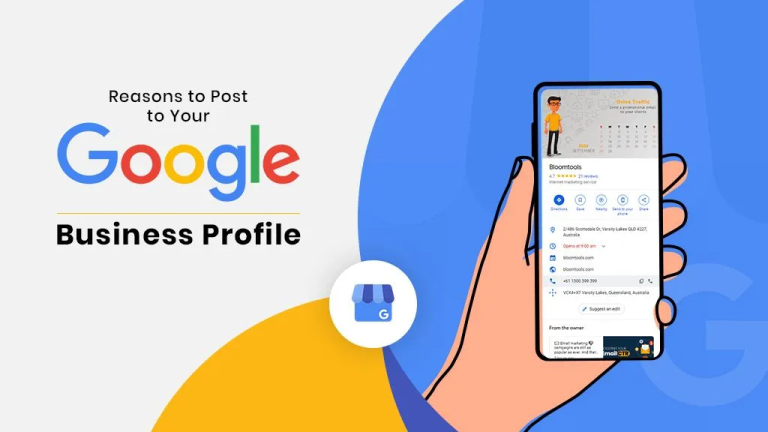
The local search landscape has experienced a major update. Google has connected Google Business Profile (GBP), Google Analytics (GA4), and Gemini AI into a unified search ecosystem.
For years, local search engine optimization relied on fragmented tools. Marketers checked website traffic in GA4, viewed calls and direction requests inside the GBP dashboard, and handled customer engagement manually.
Now, with direct GBP reporting in Google Analytics and profile management features supported by Gemini AI, tracking local performance is more straightforward.
If you manage local listings, run multi-location campaigns, or work to improve visibility in search results, here is a detailed look at how these updates function.
What Is Changing? The Core Integrations Explained
Google has connected off-page local interactions with on-page website analytics.
When customers search or discover a business on Google Maps, their interactions go through the Google Business Profile. From there, data feeds directly into Google Analytics 4 for native metrics tracking, while Gemini AI serves as a conversational hub for profile management.
1. Google Business Profile Meets Google Analytics 4
Previously, tracking GBP traffic in Google Analytics required adding custom UTM parameters to website URLs. While UTM tags showed website visits, offline customer actions such as direct phone calls, map route requests, messaging, and menu views remained inside the separate GBP reporting dashboard.
With the Google Business Profile Analytics integration under GA4’s Product Links, profile data flows into your main analytics reporting alongside site metrics.
Core Metrics Available in GA4:
-
Interactions: Overall customer touchpoints across Google Maps and Search.
-
Calls & Direction Requests: Total phone calls placed and map routes requested.
-
Website Clicks: Direct visits to your site from your local profile.
-
Messages, Bookings & Menu Views: Specific engagement metrics recorded from profile visitors.
To read more about connecting your search properties, see our guide on how Google platform properties are fully live.
2. Google Business Profile & Gemini AI Integration
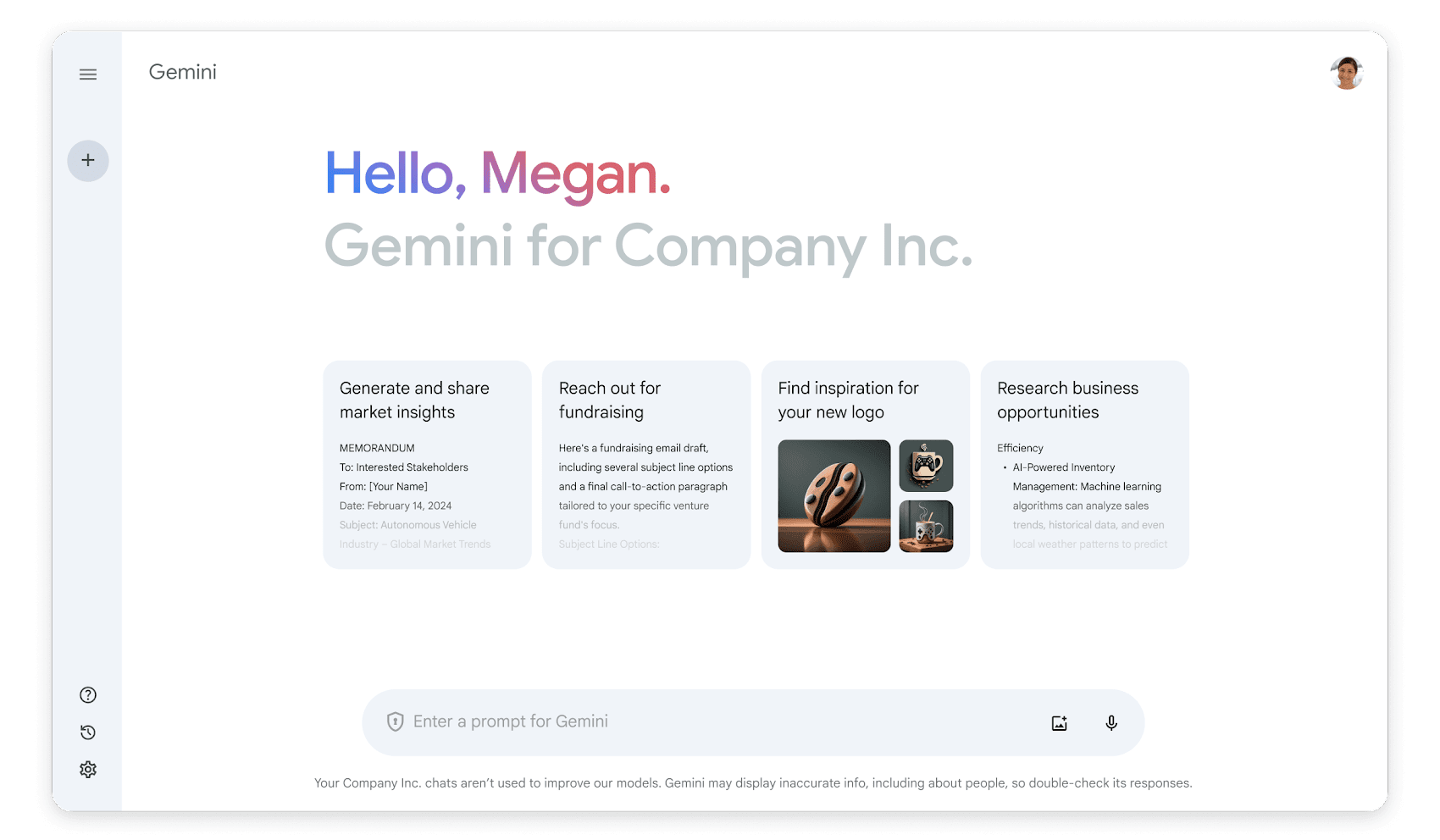
Along with updated reporting, Google added Gemini assistant features directly into profile management. By linking your business account in Gemini, you can manage listing details through conversational commands.
What You Can Do with Gemini:
-
Review Search Keywords: Query Gemini directly to see which search terms brought users to your listing over a specific timeframe.
-
Respond to Reviews: Draft replies to incoming customer feedback quickly.
-
Create Updates: Write and schedule local posts, special offers, and seasonal details using plain text commands.
-
Profile Checks: Review missing information, confirm store hours, and receive maintenance reminders.
For more approaches to setting up your strategy, explore our overview of local SEO and AI search strategy.
Why This Integration Changes Local SEO
1. Combined Tracking in One Place
Local search managers no longer need to export separate spreadsheets. Comparing map views and route requests next to website contact form conversions provides a clearer view of total campaign returns.
2. Faster Profile Updates
Keeping listing information fresh across multiple locations takes effort. Using plain-text requests in Gemini speeds up writing posts and responding to feedback, ensuring business details remain accurate.
3. Clear Signals for Search Engines
Modern search engines rely heavily on active, verified business information. Profiles that regularly update operating hours, post updates, and respond to customer reviews provide strong signals to search systems. Maintaining complete local information helps maintain consistent visibility across search results.
To learn more about how search systems process local listings, read our guide on how AI mode impacts local SEO.
How to Set Up the Integrations
Step 1: Link Google Business Profile to Google Analytics
-
Open Google Analytics and click on Admin.
-
Locate Product Links in the menu and click Google Business Profile Links.
-
Choose Link and select the verified Business Profile you want to connect. (Requires Editor access in GA4 and Manager access on the profile).
-
Submit the request to complete the setup. Reporting views will appear in your GA4 panel.
Note: GA4 stores GBP interaction metrics for up to 6 months. Multi-location setups show combined total metrics. To track separate performance for specific locations, continue using UTM parameter tags on individual listing URLs alongside the primary connection.
Step 2: Connect GBP to Gemini
-
Open Gemini while logged into the Google account connected to your verified Business Profile.
-
Confirm that account activity permissions are turned on.
-
Prompt the assistant to display your profile metrics for the recent period.
-
Confirm access to view performance details.
Practical Checklist for Business Profiles
| Focus Area | Action Step | Main Purpose |
| Profile Information | Review business hours, service details, and address settings regularly. | Keeps details accurate across search results and maps. |
| Customer Feedback | Reply promptly to new reviews as they arrive. | Maintained engagement builds trust with searchers. |
| Traffic Review | Check call and direction totals alongside website contact metrics in GA4. | Provides a full picture of online and offline customer actions. |
| Listing Completeness | Fill out all relevant attributes, services offered, and business descriptions. | Helps search engines properly match your profile with relevant queries. |
For technical considerations regarding modern search engines, read our breakdown of technical SEO for AI search.
Next Steps for Local Listings
Linking Business Profile, Analytics, and Gemini provides a consolidated approach to managing local business details. Connecting these tools saves time on routine edits and keeps your measurement setup in one central hub.
To learn more about expanding your online visibility, see our guide on why small businesses must focus on AEO for Google visibility as well as our deep dive into Google AI Overviews strategy. For full setup requirements from official documentation, visit the Google Analytics Help Center.

SURBHI THAPA
Surbhi Thapa is an SEO specialist focused on SEO strategy and content optimization.
Surbhi Thapa is an SEO specialist focused on SEO strategy and content optimization.